
To print a thorough examination report using the web-based app:
-
Complete all inspections to be included in your TE report
-
Head to the inspections area and select the thorough examinations (TE) tab
-
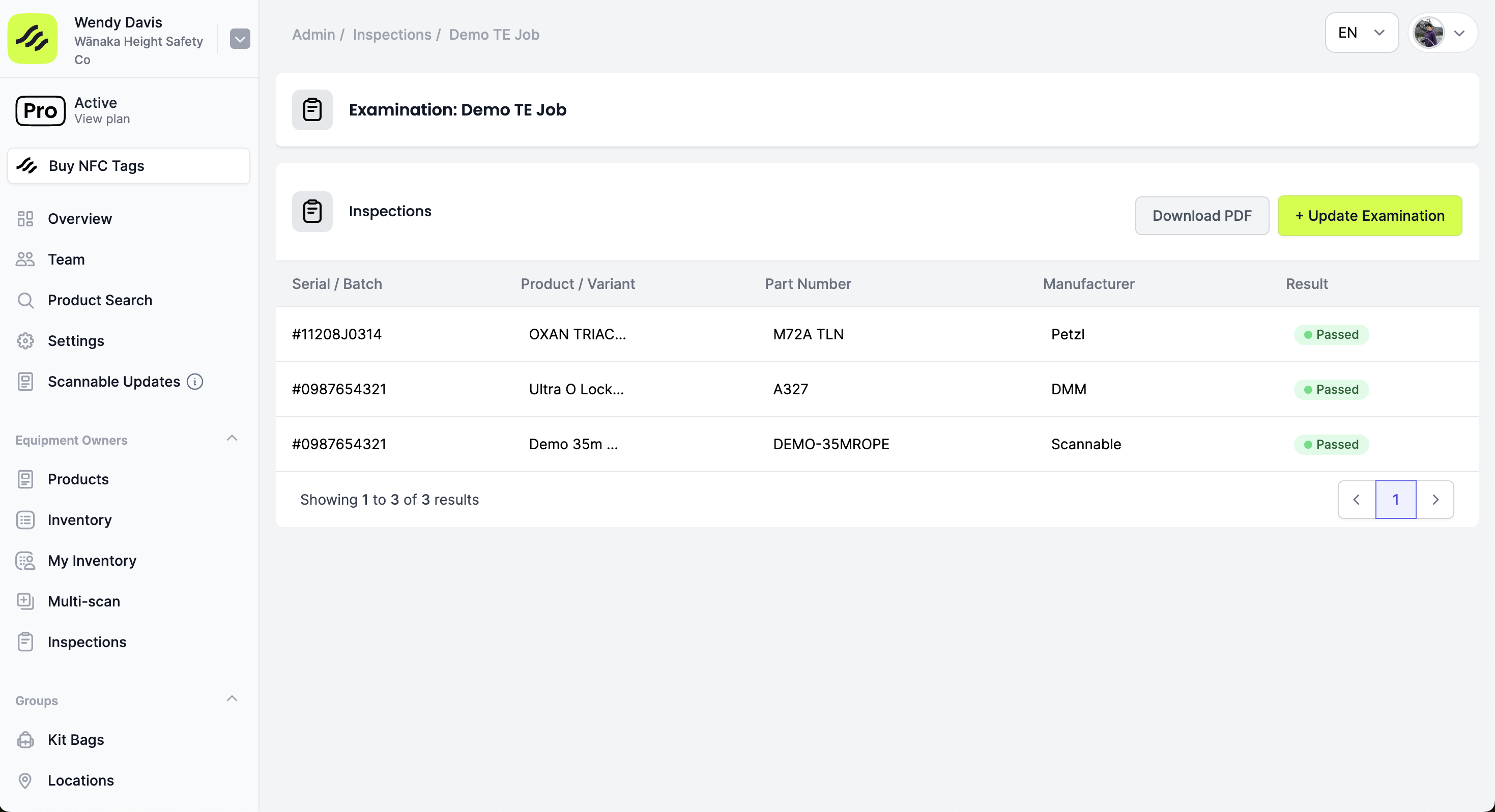
Click on the job reference name, eg ‘Demo TE Job’
-
Click on ‘+ Update examination’
- Use the Status dropdown menu to change the status of your TE to 'Complete'
- Populate the date of issue, update or enter the declaration, select the customer and issued addresses, and click ‘Update’
-
You can now download the certificate of thorough examination by clicking on ‘Download PDF’ and print or share it as preferred
To print a thorough examination report using the mobile app:
- Complete all inspections to be included in your TE report
- Tap 'Me'
- Tap 'Thorough examinations'
- Tap the three dots to the right of the TE
- Tap ‘Update’
- Use the Status dropdown menu to change the status of your TE to 'Complete'
- Populate the date of issue and update or enter the declaration and notes, and click ‘Update’
- You can now download the certificate of thorough examination by tapping on the three dots to the right of your TE and tapping ‘Download PDF’