
Your Stock page holds the source reels your organisation cuts from. It is separate from the products you publish, and it is not an inventory.
Only cuttable SKUs can be added to Stock. To manage equipment your team uses, such as inventory, folders, labels and inspections, use an equipment owner organisation. See Creating an organisation
Adding source reels
On the web app:
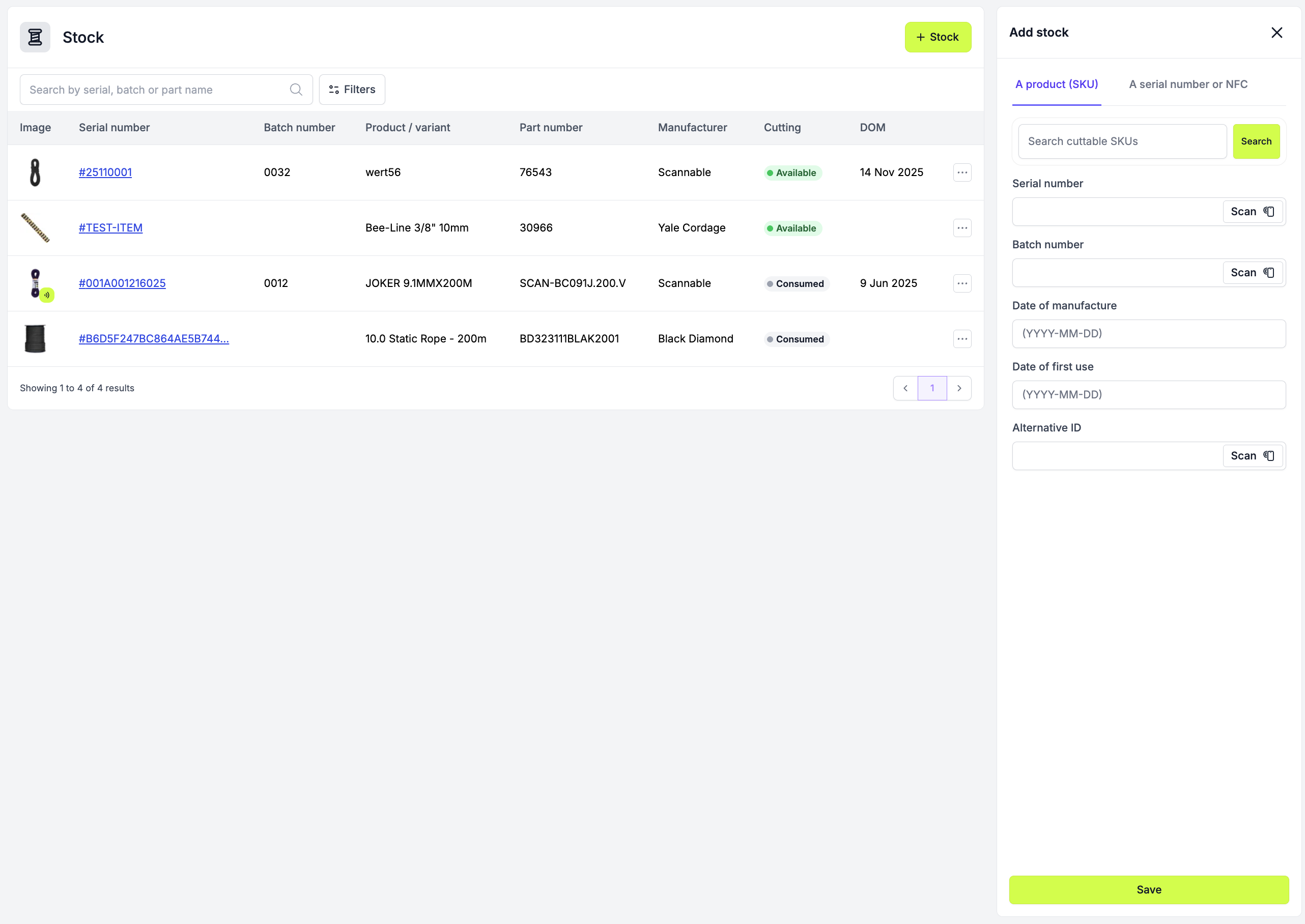
1. Go to Stock and select Add stock.
2. Search by name or part number for a cuttable SKU.
3. Enter the reel's details, such as its serial number, batch number and date of manufacture.
To add a reel that already has a serial in Scannable, search for its serial number instead.
On the mobile app:
1. Open the Stock tab and tap Add stock.
2. Search for a cuttable SKU and enter the reel's details.
Every reel you add is available for cutting straight away.
Seeing what was cut from a reel
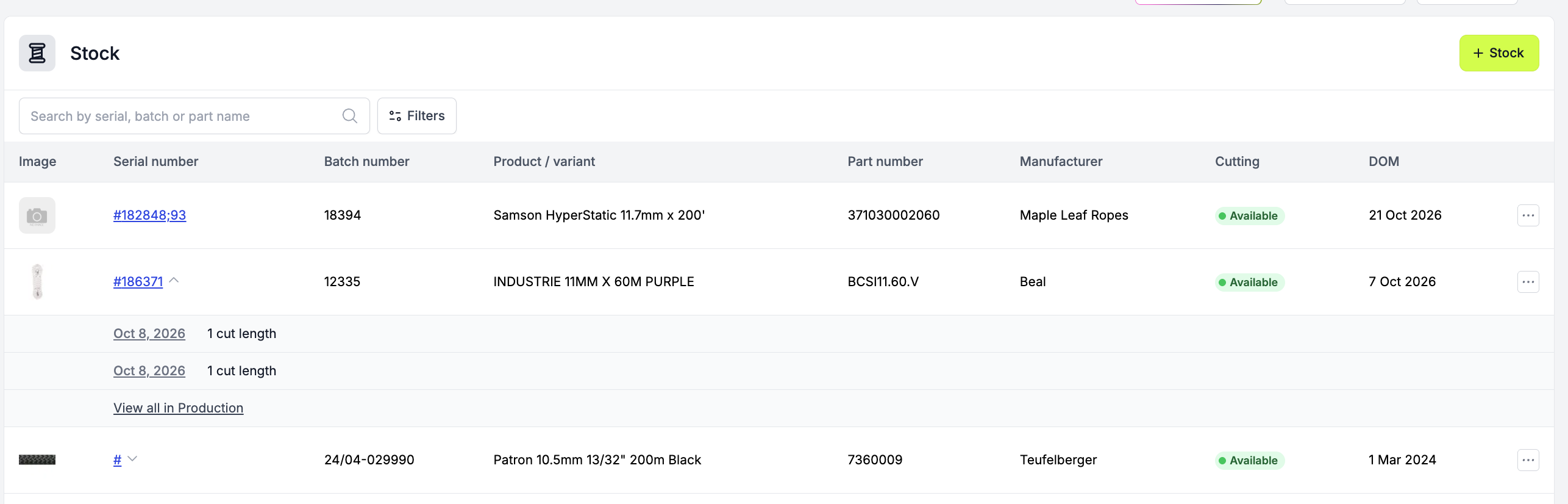
Each reel lists its production runs and how many lengths each run cut. Select a run to see its serials, or choose View all in Production.
When a reel runs out
Mark the reel as consumed when it is empty, damaged or no longer cut from. Consumed reels stay in Stock, so every cut length can still be traced back to its reel. You can't cut from a consumed reel.
- On the web app, open the reel's actions menu in Stock and choose Mark as consumed.
- On the mobile app, open the reel and choose Mark as consumed from its options menu. The ⋯ menu in the cut rope source list has it too.
Choose Mark as available to undo it. Filter Stock by Available for cutting to see available or consumed reels.

Removing a reel
Remove from stock takes the reel out of Stock completely. To keep a reel listed for traceability, mark it as consumed instead.