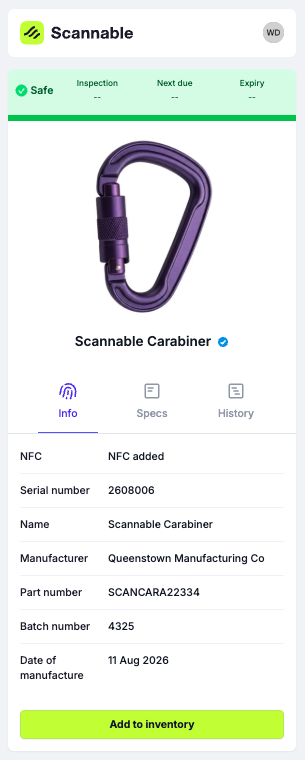
If you've audited a SKU's data and you're confident it's accurate, you can mark it as verified — it signals that you, the manufacturer, stand behind that SKU's data that’s in Scannable.
Verifying is a manual step you take, not something Scannable calculates for you. It's independent of a SKU's Data Quality Score — a SKU sitting at 67% can still be verified if you've checked it over and you're confident in what's there.
Note: Verifying is your call, based on your own review of the product data — not an automatic threshold. You can verify both Smart PPE and non-Smart SKUs.
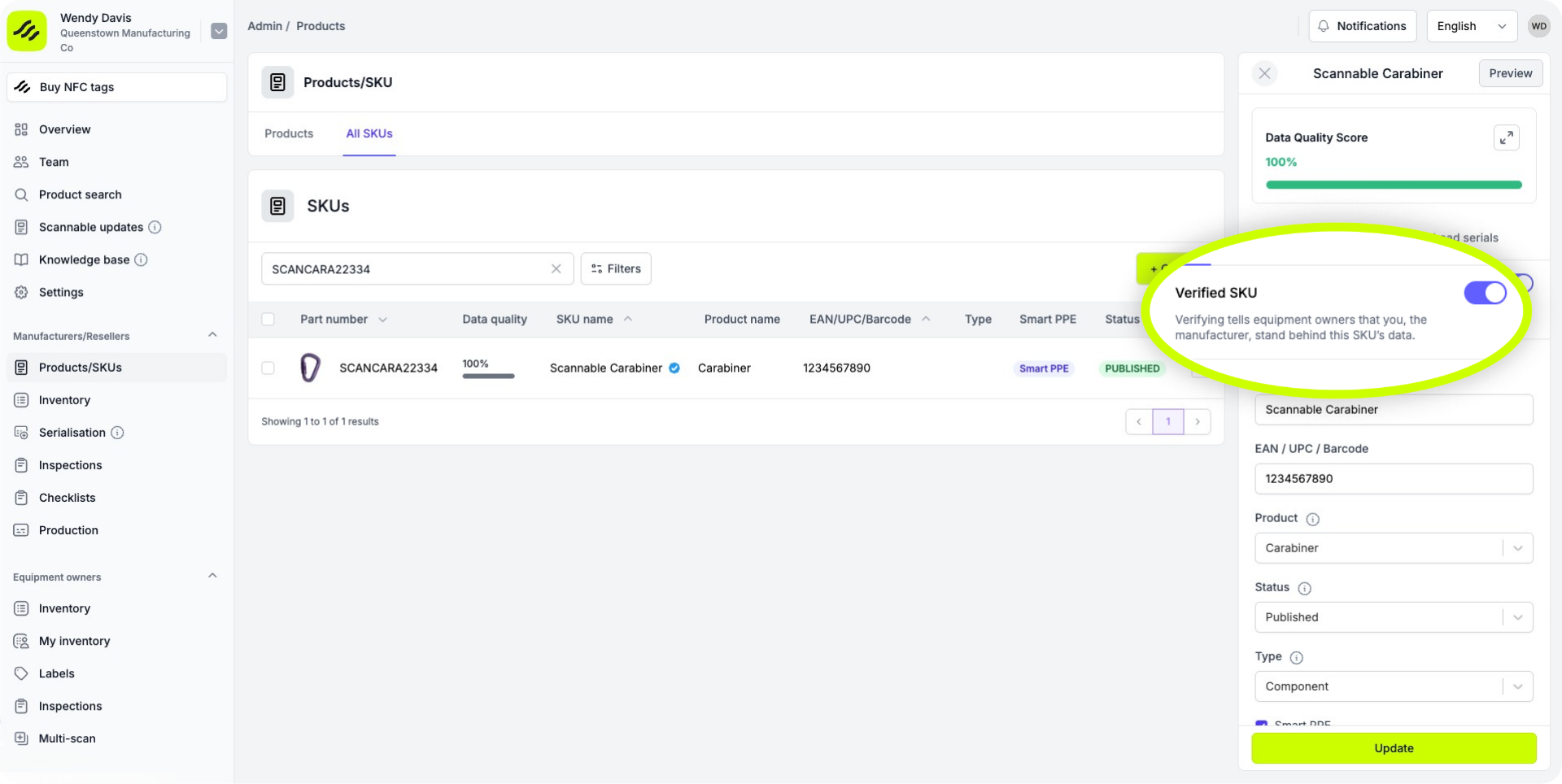
Marking a SKU as verified
- Go to Products/SKUs → All SKUs.
- Click into the SKU you want to verify.
- In the side panel, under the Data Quality Score, turn on Verified SKU.
That's it — the SKU is now marked as manufacturer-verified.
Verifying several SKUs at once
If you've got a batch of SKUs to verify together:
- From the All SKUs list, tick the checkboxes next to the SKUs you want to verify.
- Use the bulk action to set them all as verified in one go.
What equipment owners see
Once a SKU is verified, a small checkmark appears next to that product wherever equipment owners encounter it — in their inventory list, on the item detail screen, and in product search results. Hovering over the checkmark shows:
Manufacturer verified
The manufacturer has audited and verified this data.
It's a small detail, but it's a direct trust signal — it tells the equipment owner using your product that a real person on your team has looked at this data and confirmed it's right.